
MCP Server Setup
MCP Server (Model Context Protocol)
Connect AI agents and MCP-compatible clients to the CRM using the MCP Server. This allows AI assistants to securely retrieve data, execute tool calls, automate workflows, and interact with the CRM services through a standardized HTTP connection.
What is MCP Server?
The MCP (Model Context Protocol) Server provides a secure way for AI agents and MCP-compatible applications to interact with the CRM tools and services. Using the MCP Server, AI assistants can retrieve records, update data, automate workflows, and execute actions directly inside the CRM.
The MCP Server supports integrations across multiple CRM services, including contacts, conversations, calendars, opportunities, payments, and locations.
Production MCP Endpoint
https://services.leadconnectorhq.com/mcp/
Key Benefits of MCP Server
The MCP Server helps developers and AI builders create secure, scalable, and AI-powered workflows inside the CRM.
- Centralized AI Access: Connect AI agents to multiple CRM services through a single MCP endpoint.
- Secure Authentication: Use Private Integration Tokens with scoped permissions for secure access.
- Natural Language Automation: Allow AI assistants to execute workflows using conversational prompts.
- Multi-Service Connectivity: Access contacts, conversations, opportunities, calendars, payments, and more.
- MCP-Compatible Flexibility: Connect with Cursor, Windsurf, OpenAI Playground, Claude-compatible clients, and custom MCP applications.
Supported MCP Clients
The MCP Server supports MCP-compatible applications that can connect through HTTP.
Supported clients include:
- Cursor
- Windsurf
- OpenAI Playground
- Claude-compatible MCP clients
- Custom MCP-compatible applications
Prerequisites
Proper setup ensures secure and reliable MCP access for your AI workflows.
Before configuring the MCP Server, make sure you have:
- Access to a CRM location
- A Private Integration Token
- Required integration scopes enabled
- An MCP-compatible client
Generate a Private Integration Token
Private Integration Tokens allow MCP-compatible clients to securely authenticate with the CRM services.
How To Create a Token
-
Log in to the CRM.
-
Open the desired sub-account/location.
-
Navigate to Settings
.
-
Click Private Integrations.
-
Select Create New Integration.
-
Choose the required scopes.
-
Click Create Integration.
- Copy and securely store the generated token.
Configure an MCP-Compatible Client
Adding the MCP endpoint and authentication headers allows your AI client to discover and execute MCP tools.
Example MCP Configuration
{  "mcpServers": {    "prod-ghl-mcp": {      "url": "https://services.leadconnectorhq.com/mcp/",      "headers": {        "Authorization": "Bearer <your-token>",        "locationId": "<your-location-id>"      }    }  } }
JSON
Required Scopes
Scopes control which CRM resources and actions AI agents can access. Grant only the permissions required for your workflows.
Recommended Scopes
Contacts
- View Contacts
-
Edit Contacts
Conversations
- View Conversations
- Edit Conversations
- View Conversation Messages
-
Edit Conversation Messages
Opportunities
- View Opportunities
-
Edit Opportunities
Calendars
- View Calendars
- Edit Calendars
- View Calendar Events
-
Edit Calendar Events
Payments
- View Payment Orders
-
View Payment Transactions
Other
- View Custom Fields
- View Forms
- View Locations
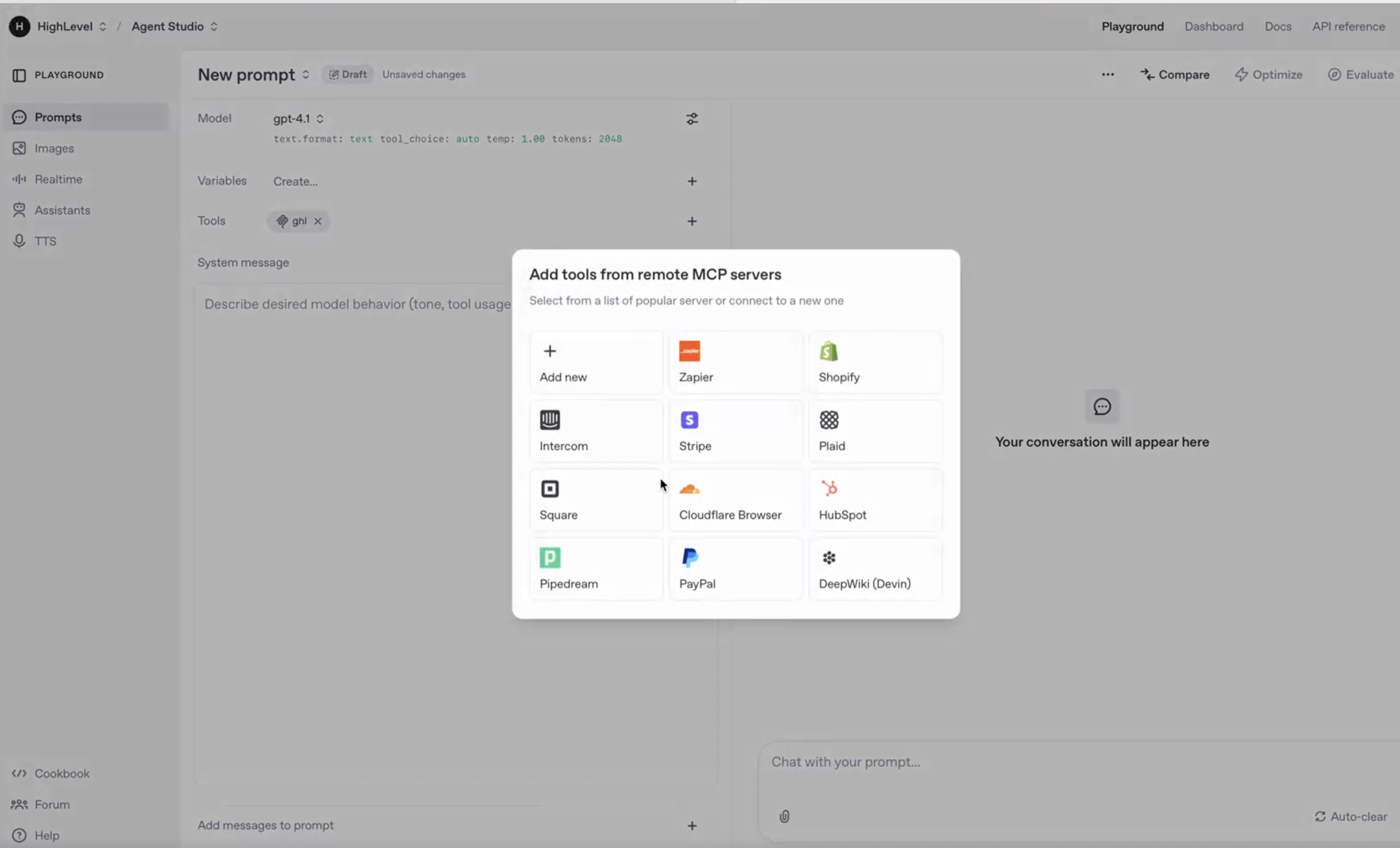
Available MCP Tools
The MCP Server currently includes tools across multiple CRM services.
Calendar Tools
-
calendars_get-calendar-events
-
calendars_get-appointment-notes
Contact Tools
-
contacts_get-all-tasks
-
contacts_add-tags
-
contacts_remove-tags
-
contacts_get-contact
-
contacts_update-contact
-
contacts_upsert-contact
-
contacts_create-contact
contacts_get-contacts
Conversation Tools
-
conversations_search-conversation -
conversations_get-messages
conversations_send-a-new-message
Location Tools
-
locations_get-location
locations_get-custom-fields
Opportunity Tools
-
opportunities_search-opportunity
-
opportunities_get-pipelines
-
opportunities_get-opportunity
opportunities_update-opportunity
Payment Tools
-
payments_get-order-by-id
-
payments_list-transactions
Example MCP Workflows
The MCP Server enables AI agents to perform actions inside the CRM using natural language requests and MCP tool execution.
Common MCP Workflows
- Searching contacts
- Updating opportunities
- Sending messages
- Retrieving calendar events
- Managing conversation history
- Accessing payment data
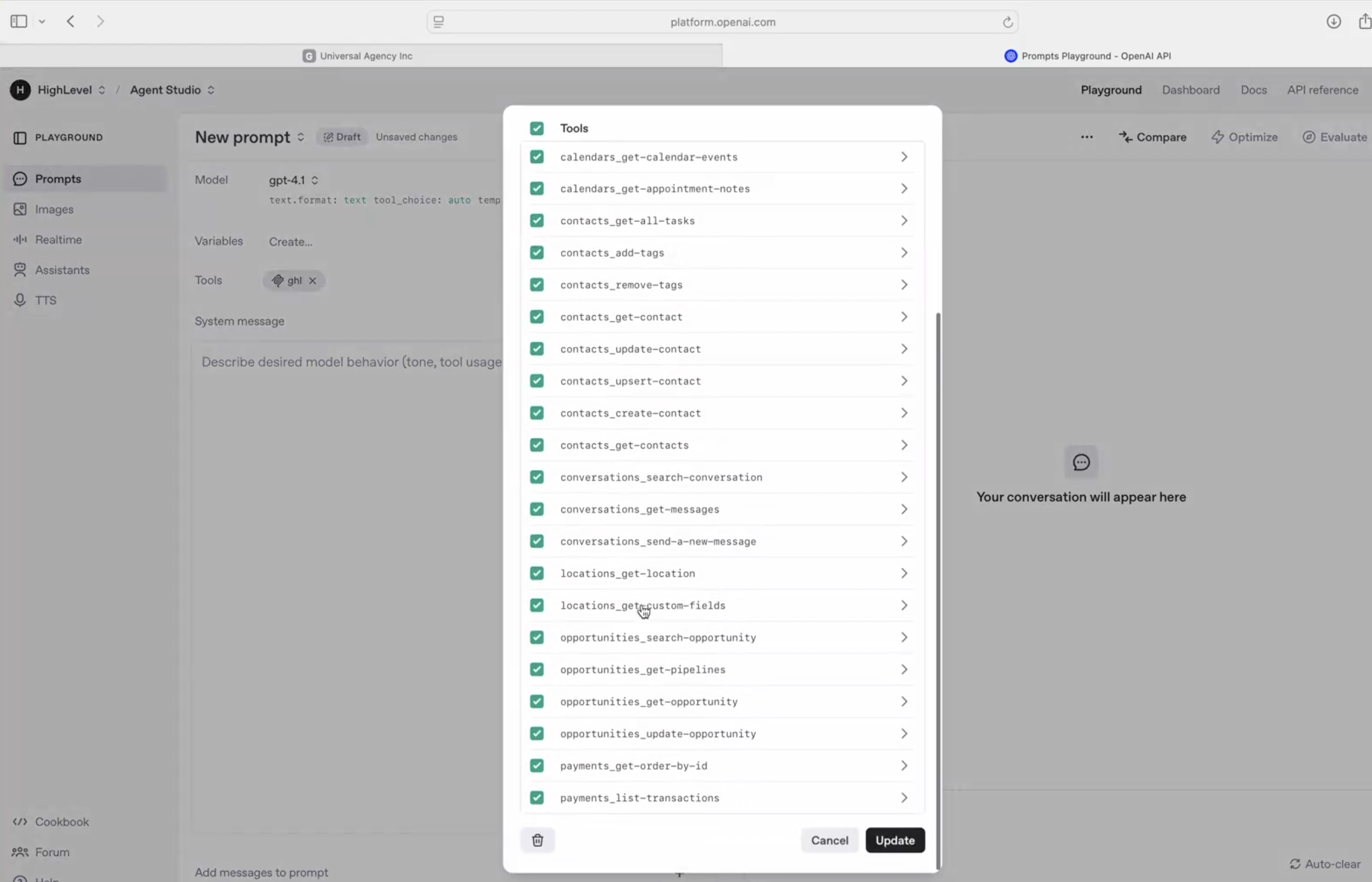
Contact Data Access Example
AI agents can retrieve and manage contact data directly through MCP tools.
Supported Contact Actions
- Find contacts
- Read contact details
- Access tags
- Review recent activity
- Manage tasks
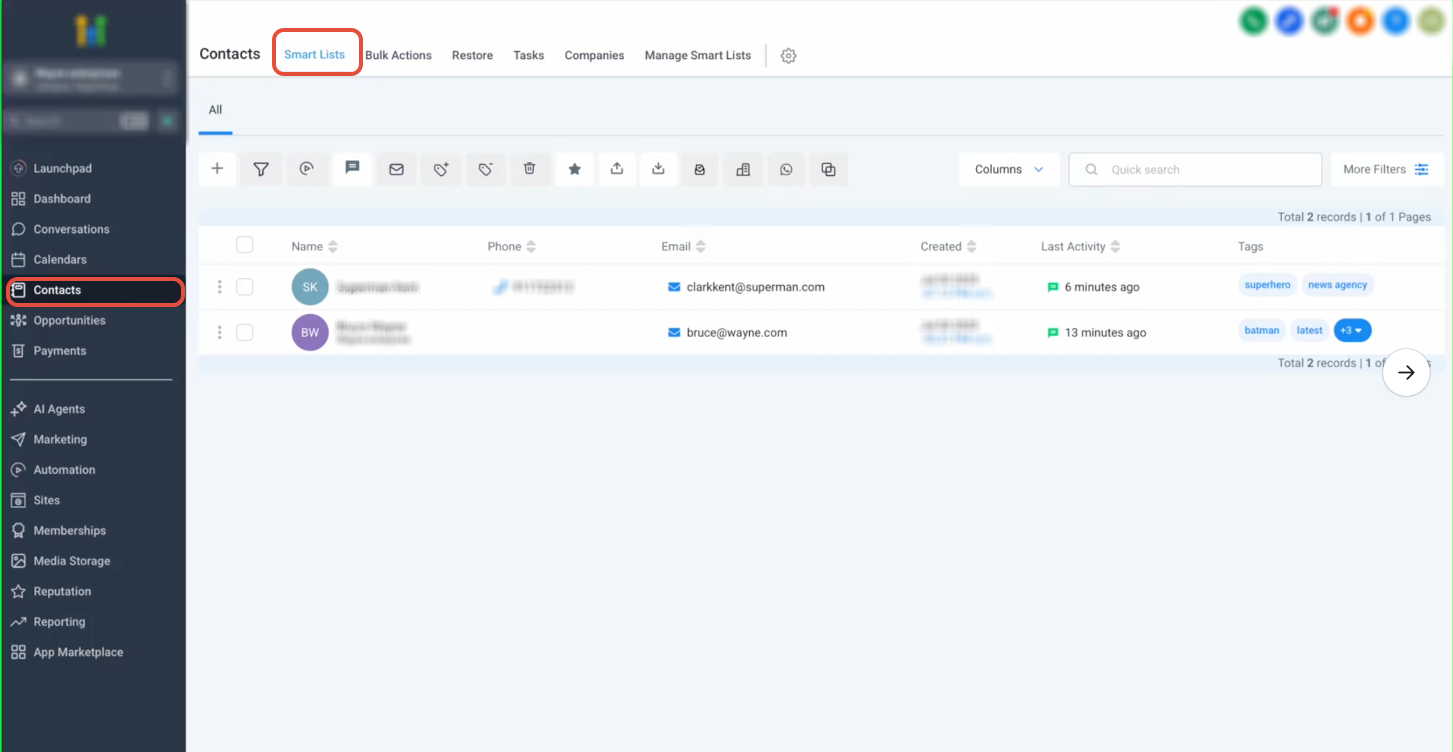
Conversations Tool Example
Conversation tools allow AI agents to retrieve messages and send replies directly from MCP-compatible clients.
Supported Conversation Actions
- Search conversations
- Retrieve message history
- Send new messages
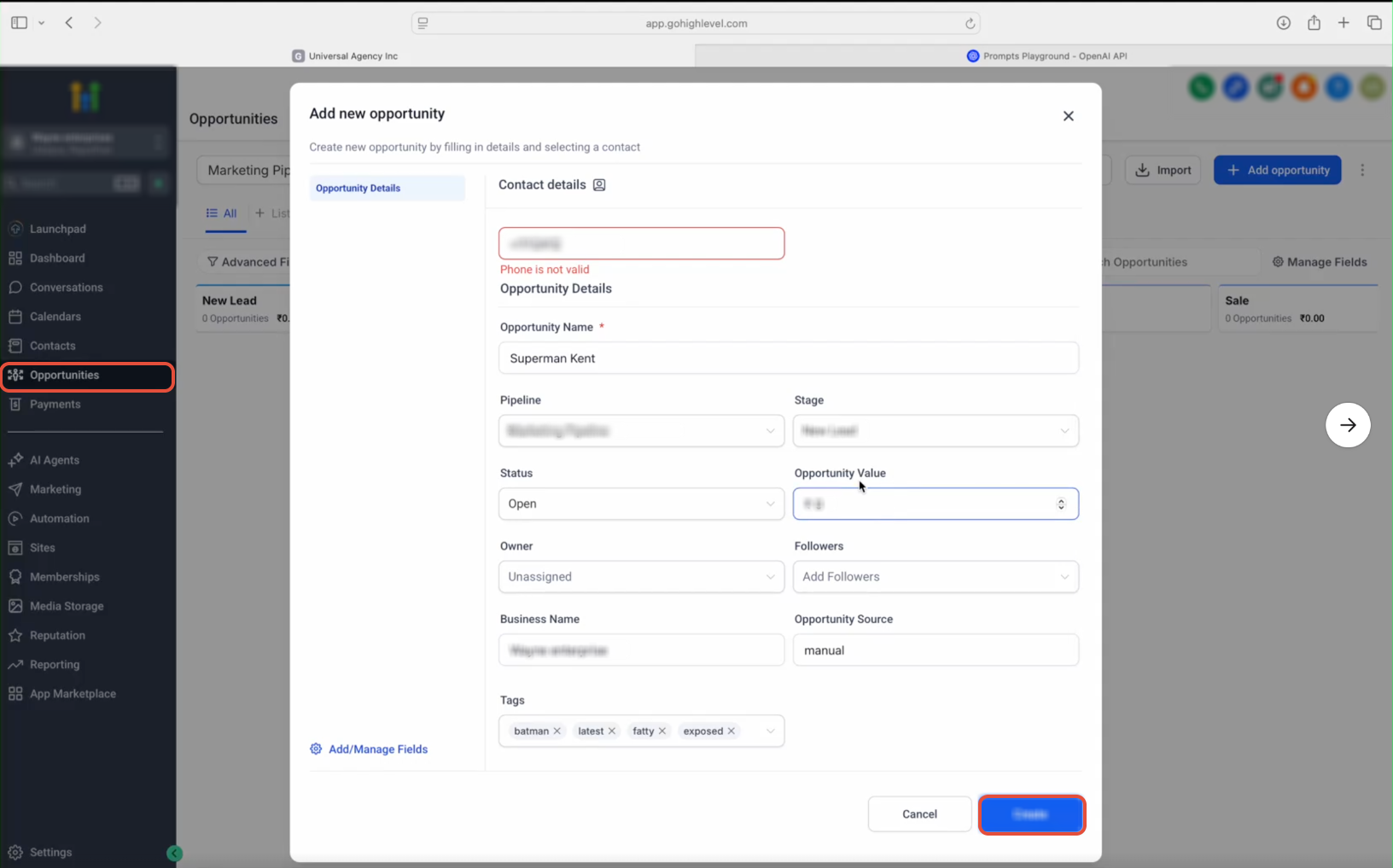
Opportunity Workflow Example
Opportunity tools help AI agents interact with pipelines and manage sales workflows directly through MCP tools.
Supported Opportunity Actions
- Retrieve pipelines
- Search opportunities
- Update opportunity records
- Manage sales workflows
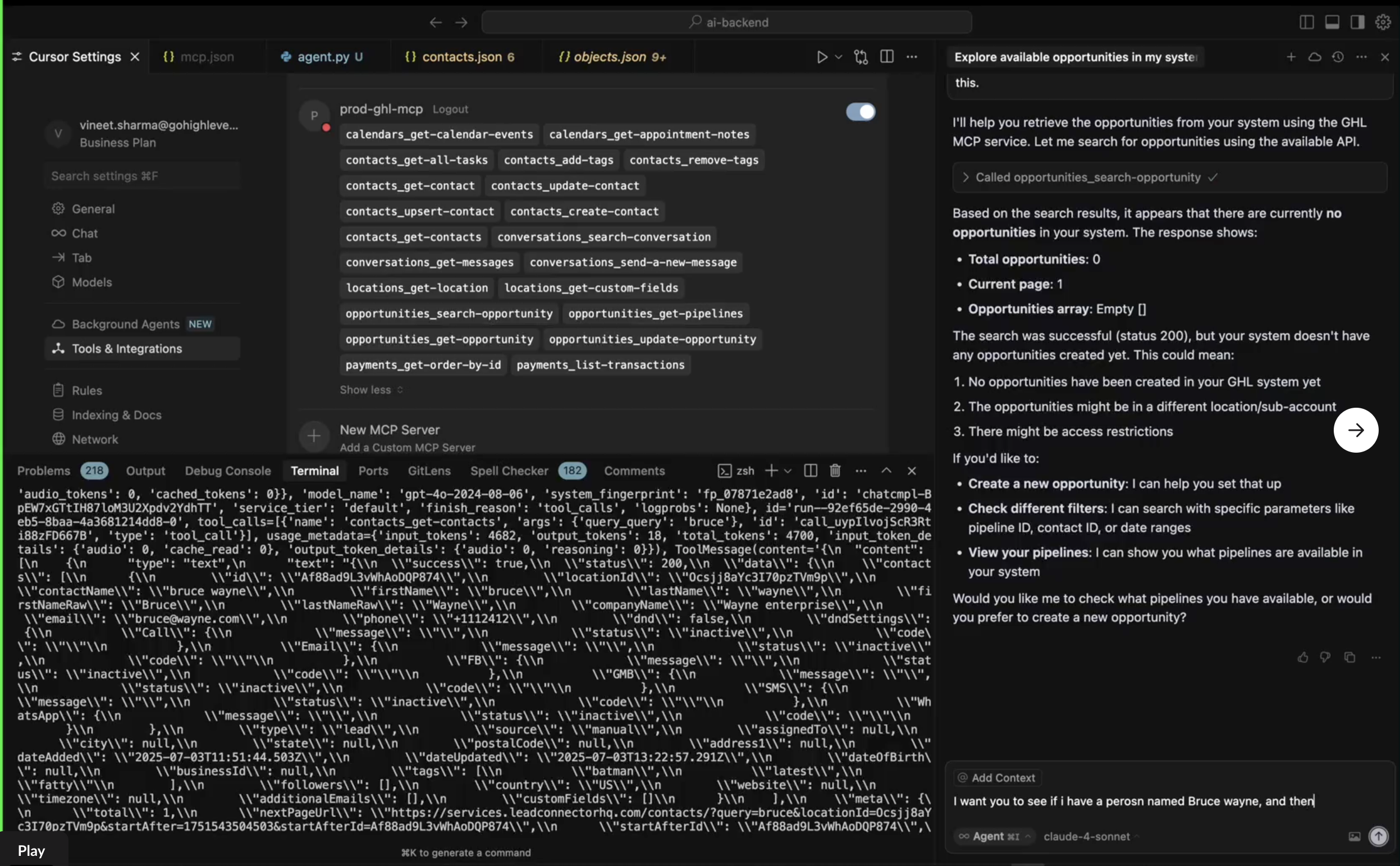
Using MCP in Cursor
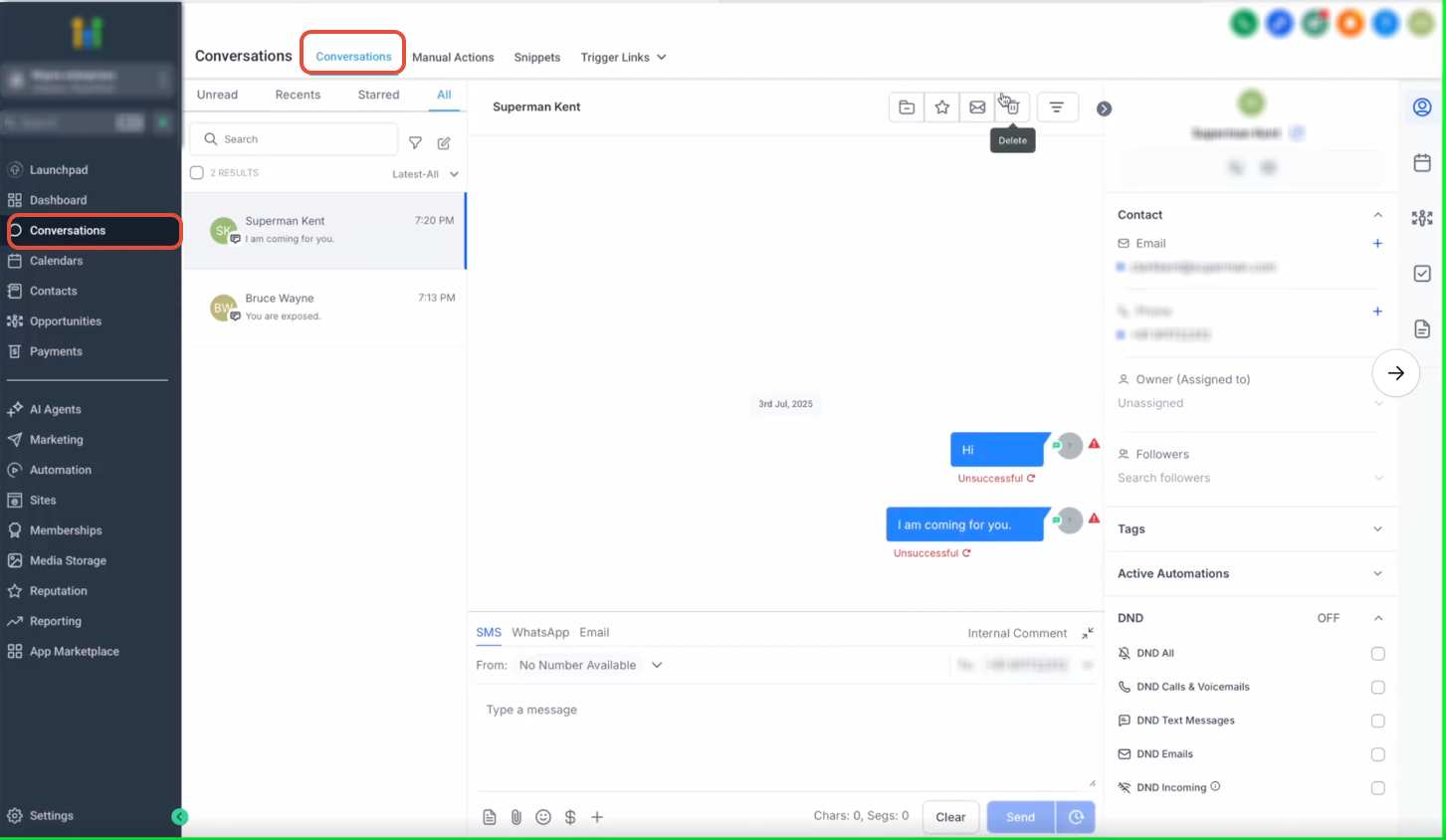
Cursor can connect directly to the MCP Server using MCP configuration settings. Once connected, Cursor can discover tools, execute MCP actions, and interact with the CRM using natural-language prompts.
Cursor MCP Capabilities
- Discover available tools
- Execute MCP tool calls
- Query the CRM data
- Trigger updates using AI prompts
Security and Authentication
The MCP Server uses token-based authentication to secure AI access to CRM resources.
Each request requires:
- A valid Private Integration Token
- A valid
locationId
Keep integration tokens secure and avoid exposing them publicly.
Best Practices
Following security best practices helps improve reliability and reduce unauthorized access risks.
- Use only the scopes required for your workflows.
- Store tokens securely.
- Test integrations before production deployment.
- Monitor AI activity when enabling write permissions.
- Rotate integration tokens periodically.
Frequently Asked Questions
Q: What does MCP stand for?
MCP stands for Model Context Protocol. It is a standardized protocol that allows AI agents and copilots to securely interact with external tools and services.
Q: What MCP clients are supported?
Supported clients include Cursor, Windsurf, OpenAI Playground, Claude-compatible MCP clients, and custom MCP-compatible applications.
Q: How do I authenticate with the MCP Server?
Authentication requires a valid Private Integration Token and locationId , which must be added to the MCP client configuration headers.
Q: Can AI agents update the CRM data using MCP?
Yes. MCP tools support both read and write actions depending on the scopes assigned to the Private Integration Token.
Q: What services are currently supported?
The current MCP release supports contacts, conversations, calendars, opportunities, payments, locations, and custom fields.
Q: Is OAuth currently supported?
No. OAuth support is planned for a future release.
Q: Can I use MCP with custom AI agents?
Yes. Any custom application that supports MCP over HTTP can connect to the MCP Server.