
Reputation Management - Video Testimonials
What is Video Testimonials in Reputation Management?
Video Testimonials is a Reputation feature that allows you to collect customer video reviews using shareable, branded “Video Collectors.” Contacts can record or upload a video from desktop or mobile (no app required). Collected videos can then be reviewed internally and showcased on your site using the Review Widget.
Key Benefits of Video Testimonials
- Authenticity: Real faces and voices build trust far faster than text-only reviews.
- Frictionless capture: Contacts record or upload from any modern device—no app required.
- Brand control: Customize collector branding (logo, background, text, accent, button colors) to match your visual identity.
- Flexible distribution: Share direct links or send via Email, SMS, or WhatsApp from the CRM.
- Centralized management: View and download all submissions in the Responses tab.
- Easy showcasing: Add videos to your existing Review Widget, with layout options and per‑collector filtering.
- Performance guardrails: Each video is capped at 2 minutes 30 seconds to keep files lightweight and watchable.
How To Create Video Collectors
Follow these steps to create a video collector.
Step 1: Create a Video Collector
- Login to your account.
- Go to Reputation → Video Testimonials.
- Click + Create Collector or Create a Collector button.

Step 2: Setup Welcome Page
- Add Public Collector Title.

- Enable or disable Spokesperson Image: Make your collector personal with a friendly face from your company. This can be you or a colleague.
- Add Spokesperson details.

- Add How it Works section: A short description about how everything works.

- Add Welcome Message: A short message from your collector's spokesperson.

Step 3: Setup Questionnaire Page
- Add up to 3 questions.
- Order them for a guided flow.

Step 4: Setup Attribution Page
After your questions, we ask respondents to identify themselves, or to confirm their info when it's been preloaded with a personalised link.
- Add Headline.
- Add Message.

Step 5: Thank You Page
- Add Headline.
- Add Message.
- Add Spokesperson's Email.

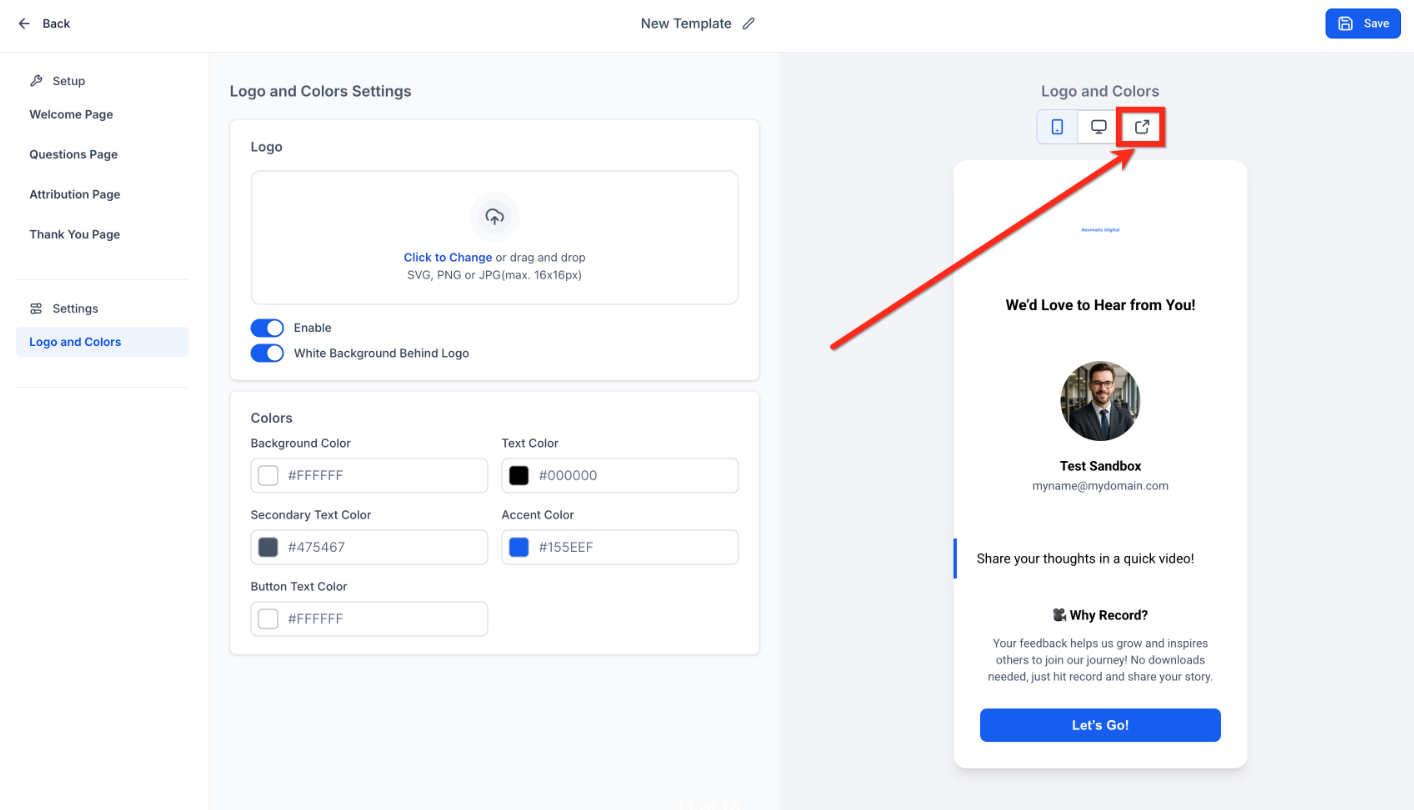
Step 6: Set Logo & Colors
- Enable and Add logo.
- Enable or Disable White Background Behind Logo.
- Set background, text, secondary text, accent, and button colors.
- Click Save.

-
Click Preview to see exactly what your client will see when they open the collector to record their video review.
How to Share & Manage Video Testimonials
1. Via Link
- From Video Testimonials → Collectors, locate your collector.
- Click Copy Link and share by email, chat, social, or QR.

2. Send a Video Review Request (Email/SMS/WhatsApp)
- Click Send Review Request or the share icon of the collector.

- Select Contact.
- Select Email, SMS, or WhatsApp.
- Use Override Video Link to choose which collector to include.
- Select Default Email/SMS/WhatsApp Template or pre-made custom templates.
- Click on Send Review Request.

How to Manage and Download Responses
- Open Reputation → Video Testimonials → Responses.
- Click any submission to view the video.
- Click Download to save the original file locally.

How to Display Videos in the Review Widget
- Go to Reputation > Widgets.
- Create or Edit a Review Widget.
- Select Review Type as Video Testimonials.
- Choose Video Testimonial Source as the collector you want to display.
- Choose widget type, number of reviews, override video link and enable or disable powered by.
- Click Save.
